

OD Local Fonts Documentation
- Getting Started - Installation, Requirements, Quick Start
- Dashboard - Font Overview, Search, Management
- Upload Fonts - Free vs Pro, Best Practices
- Settings - Privacy, Helix, Upload, Comfort, Advanced
- Helix U Integration - Typography, Font Selection
- Troubleshooting - Common Issues
- FAQ - Frequently Asked Questions
OD Local Fonts is a privacy-friendly Joomla extension that allows you to manage and serve web fonts directly from your server. By hosting fonts locally, you eliminate external requests to services like Google Fonts, ensuring DSGVO/GDPR compliance and faster page loads.
What's Included:
- Component: Main font management interface in Joomla backend
- Helix Ultimate Plugin: Seamless integration with Helix Ultimate templates
- Privacy Plugin: Blocks external font requests for DSGVO/GDPR compliance
Installation
Step 1: Download the Package
Download the latest pkg_odlocalfonts_X.X.zip from your purchase receipt or the octi Suite dashboard.
Step 2: Install via Joomla
Navigate to System → Extensions → Install in your Joomla backend and upload the package file.
Step 3: Access the Component
After successful installation, go to Components → OD Local Fonts to start managing your fonts.
Requirements
Software | Version | Notes |
|---|---|---|
Joomla | 6.0+ | Latest stable version recommended |
PHP | 8.3+ | As required by Joomla 6 |
Helix Ultimate | 2.2+ | Required for Helix integration features |
Quick Start Guide
Step 1: Upload a Font
Use the sidebar upload interface to add your first WOFF2 font file.
Step 2: View in Dashboard
Your uploaded font will appear in the Dashboard table with details about style, weight, and file size.
Step 3: Use in Helix Ultimate
Navigate to your Helix template settings under Typography and select your local font from the "Local Fonts" dropdown.
Pro Tip: Don't have WOFF2 fonts? Convert your TTF/OTF files for free at FontSquirrel Webfont Generator or Transfonter.
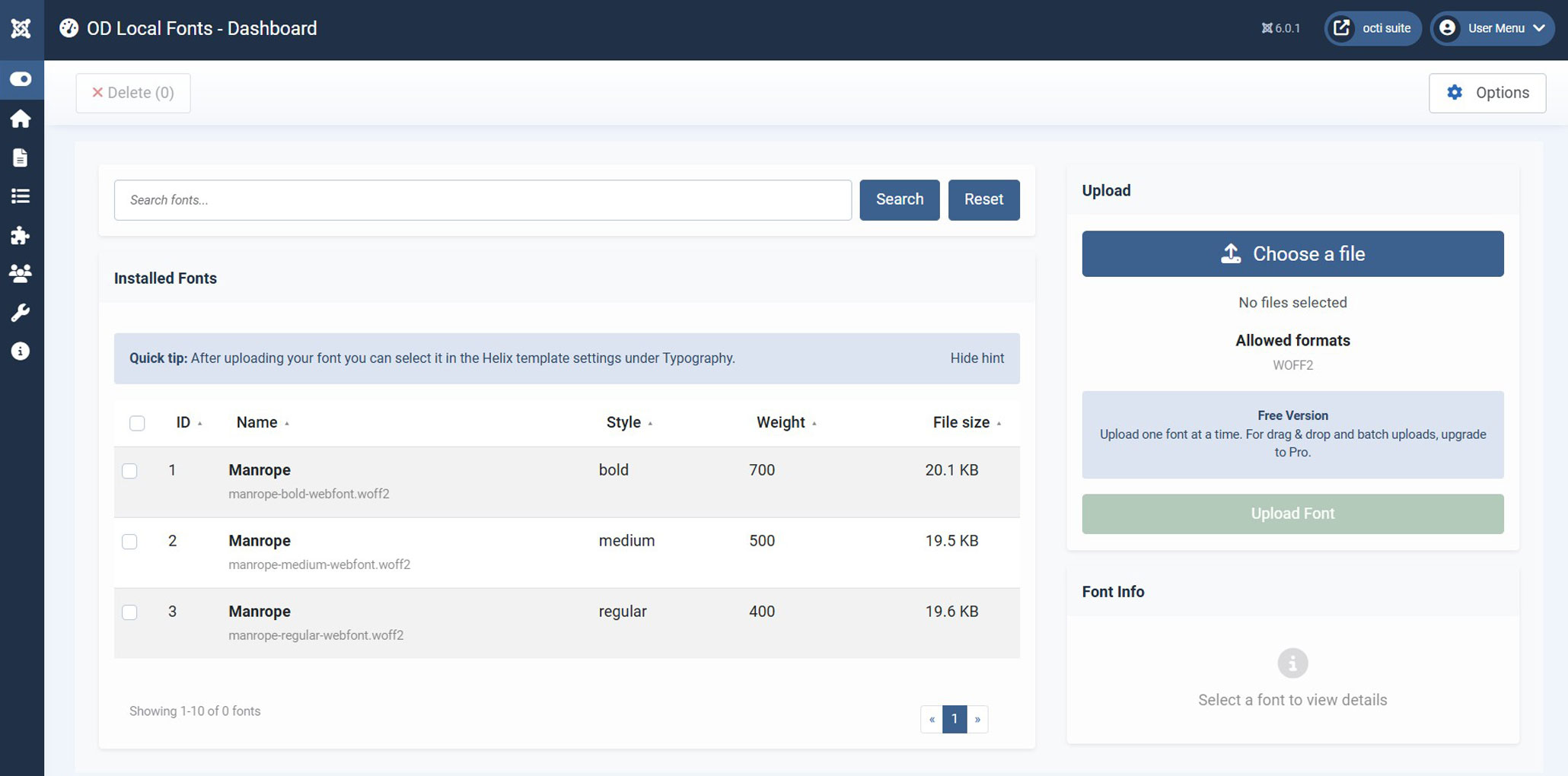
The Dashboard provides a clean interface to view, search, and manage your uploaded fonts. All installed fonts are displayed in a sortable table with key information.
Features
- Font List: View all uploaded fonts with family name, style, weight, and file size
- Search: Quickly find fonts by name using the search bar
- Sorting: Click column headers to sort by ID, Name, Style, Weight, or File Size
- Bulk Actions: Select multiple fonts for deletion
- Quick Upload: Upload sidebar always available for adding new fonts
Understanding Font Information
Column | Description |
|---|---|
ID | Unique identifier for each font file |
Name | Font family name (e.g., "Manrope") |
Style | Font style: regular, italic, oblique |
Weight | Font weight: 100-900 (e.g., 400 = regular, 700 = bold) |
File Size | File size in KB - smaller is better for performance |
Empty State
When no fonts are installed yet, the Dashboard displays a helpful empty state with:
- Quick Start Guide with 3 simple steps
- Link to FontSquirrel for WOFF2 conversion
- Upload sidebar ready to receive your first font
Quick Tip: After uploading a font, you can immediately select it in the Helix Ultimate template settings under Typography. The font will appear in the "Local Fonts" section of the font dropdown.
Font Info Panel
The Font Info panel on the right side shows detailed information about selected fonts:
- Font Preview: Visual preview of the selected font
- Font Family: Complete family name
- File Details: Format, weight, style, and file size
- File Path: Storage location on the server
- CSS Reference: Code snippet for manual implementation
How to use: Click on any font in the table to view its details in the Font Info panel. This is particularly useful when you need to reference font file paths for custom CSS implementations outside of Helix Ultimate.
OD Local Fonts supports multiple font formats for maximum compatibility. The upload interface varies between Free and Pro versions.
Free Version
- Format: WOFF2 only (most efficient format)
- Upload Method: Single file selection via "Choose a file" button
- File Limit: One font at a time
- Max Size: 2 MB per file
Pro Version
- Formats: WOFF2, WOFF, TTF, OTF
- Drag & Drop: Drag multiple files directly into the upload zone
- Batch Upload: Upload multiple fonts at once
- File Handling: Choose to rename or skip duplicate files
- Max Size: Configurable in settings (default 5 MB)
Best Practices
1. Use WOFF2 Format
WOFF2 provides the best compression and is supported by all modern browsers (95%+ compatibility).
2. Upload Only Needed Weights
Don't upload every weight (100-900). Stick to essential weights like 400 (regular), 500 (medium), 600 (semibold), and 700 (bold).
3. Subset Your Fonts
Use FontSquirrel or Transfonter to subset fonts to latin/latin-ext characters only. This significantly reduces file sizes.
4. Check File Size
Aim for font files under 50 KB each. Well-optimized WOFF2 fonts are typically 15-30 KB.
⚠️ Important: Uploading fonts does NOT automatically apply them to your site. After uploading, you need to select them in your Helix Ultimate template settings under Typography.
Converting Fonts to WOFF2
If you have TTF or OTF fonts, you can convert them to WOFF2 using these free online tools:
- FontSquirrel Webfont Generator: Comprehensive tool with subsetting options
- Transfonter: Modern converter with WOFF2 support and CSS generation
Recommended Settings:
- Format: WOFF2 only
- Subsetting: Latin / Latin Extended
- Optimization: Enable hinting and compression
Configure OD Local Fonts behavior, privacy protection, Helix integration, and advanced options. Access settings via the Options button in the toolbar.
Privacy & GDPR
The Privacy tab controls blocking of external font requests to ensure GDPR compliance.
Simple Settings
| Setting | Description |
|---|---|
| Enable Privacy Protection | Master toggle - activates all privacy features |
| Block Google Fonts | Prevents loading from googleapis.com and gstatic.com |
| Block Font Preloading | Removes preconnect/prefetch hints to external servers |
| Show GDPR Warnings | Displays admin notice when template uses Google Fonts |
Expert Settings
- Block Additional Providers: Adobe Fonts (use.typekit.net), Font Awesome, jsDelivr
- Scan CSS Files: Automatically detect external font references in stylesheets
- Log Blocked Requests: Record blocked fonts in Joomla's system log
- Where to Block: Choose Frontend only, Backend only, or both
Note: These options filter frontend assets (CSS/JS) only. They do not modify server headers or integrate with consent tools.
Helix Ultimate Integration
| Setting | Description |
|---|---|
| Enable Helix Integration | Required for all Helix-specific features |
| Hide Google Fonts from Dropdown | Removes Google Fonts option group from font selection |
| Add Local Fonts to Dropdown | Adds uploaded fonts as "Local Fonts" option group |
| Filter Weights by Available Files | Shows only font weights you've actually uploaded |
| Persist Selection Server-Side | Saves font selections to component parameters |
Fallback Font Stack
System fonts used when no local font is assigned. Default stack:
system-ui, -apple-system, Segoe UI, Roboto, Arial, sans-serif
Recompile Helix CSS
After changing Helix settings or uploading new fonts, click Recompile Helix CSS to regenerate your template's CSS files with current font settings.
Upload Settings (Pro)
Upload Options
- Enable drag & drop: Allow drag & drop file uploads
- Allow multiple uploads: Upload multiple files at once
- Overwrite existing files: Replace files with same name
- Normalize family names: Convert 'SpaceGrotesk' to 'Space Grotesk'
- Normalize file names: Lowercase, hyphenate filenames
- Auto-rename duplicates: Add _1, _2, etc. to duplicate filenames
Validation & Limits
- Max file size: 0.5 MB - 10 MB per file (default: 5 MB)
- Allowed formats: WOFF2 (required), WOFF, TTF/OTF
- Subset wizard: Enable latin/latin-ext subsetting (Pro feature)
- Max total size: Maximum total library size (default: 50 MB)
Comfort & Quality (Pro)
UX Features
- Sticky Table Header: Header stays visible when scrolling
- Quick Filter Bar: Family/Weight/Format filter chips above table
- Show Small Previews: Display tiny font preview ("Abc") in table rows
- Column Visibility: Show/hide ID, Style, Weight, Filesize columns
- Table Density: Compact / Comfort / Spacious row spacing
- Rows per Page: 5-100 fonts per page (default: 10)
Quality & Maintenance
- Delete-guard: Show confirmation dialog before deleting fonts
- Conflict Scanner: Detect duplicate font families and weights
- Refresh Assets: Clear browser cache by incrementing asset version
- Remember My Sort Order: Table sorting persists across page reloads
Advanced Settings (Pro)
CSS & Performance
| Setting | Description | Default |
|---|---|---|
| Injection Mode | How CSS is delivered to the site | Auto (in <head>) |
| Font-display Strategy | Browser font loading behavior | swap (show fallback) |
| Preload Local Fonts | Adds <link rel="preload"> for critical fonts | OFF (use sparingly) |
| Custom Fonts Path | Storage location (leave empty for default) | /media/com_odlocalfonts/fonts |
Preload Warning: Only preload 1-2 critical fonts (like body text). Preloading too many fonts can actually slow down your site by delaying other critical resources.
Import/Export & Debug
- Download Settings (JSON): Export all component parameters as JSON file
- Load Settings (JSON): Import parameters from JSON (requires confirmation)
- Reset to Defaults: Reset all Advanced options (requires confirmation)
- Debug Mode: Verbose logging for troubleshooting (Admin Only)
OD Local Fonts seamlessly integrates with Helix Ultimate templates, adding your uploaded fonts directly to the Typography settings.
How It Works
Step 1: Upload Fonts
Add fonts via OD Local Fonts Dashboard
Step 2: Access Template Settings
Go to Extensions → Templates → [Your Helix Template]
Step 3: Open Typography Tab
Click on "Typography" in the left sidebar
Step 4: Select Local Font
Choose from the "Local Fonts" section in font dropdowns
Step 5: Save & View
Save template settings and check your site
Where You Can Use Local Fonts
Local fonts appear in all Helix Ultimate typography dropdowns:
- Body Font: Main content text
- Menu Font: Navigation links
- Headlines: H1, H2, H3, H4, H5, H6
- Custom Fonts: Additional custom font slots
Font Weight Selection
When you select a local font family (e.g., "Manrope"), Helix Ultimate will show all available weights:
- Without "Filter Weights" setting: Shows all standard weights (100-900)
- With "Filter Weights" enabled: Shows only weights you've actually uploaded
Example: If you've uploaded Manrope-Regular (400), Manrope-Medium (500), and Manrope-Bold (700), enabling "Filter Weights" will show only these three options instead of all nine standard weights.
Scoped Font Selection
Helix Ultimate allows different fonts for different template positions. OD Local Fonts respects these selections and loads only the fonts actually used on each page.
CSS Generation
OD Local Fonts automatically generates @font-face rules and injects them into Helix Ultimate's CSS. No manual CSS editing required.
Removing Google Fonts
To fully replace Google Fonts with local fonts:
Step 1: Enable "Hide Google Fonts from Dropdown"
In OD Local Fonts Settings → Helix Ultimate tab
Step 2: Select Local Fonts
Go to your Helix template Typography settings and choose local fonts
Step 3: Enable Privacy Protection
In OD Local Fonts Settings → Privacy tab, enable "Block Google Fonts"
Step 4: Recompile CSS
Click "Recompile Helix CSS" button to regenerate template CSS
🛡️ DSGVO/GDPR Compliance Achieved! Your site now serves fonts locally without any requests to Google servers. If Privacy Protection is enabled, you'll see a warning in the admin area when Google Fonts are still enabled in template settings.
Font Upload Issues
Q: Upload fails with "File too large" error
Solution: Check your PHP settings. Increase upload_max_filesize and post_max_size in php.ini. Also check the "Max file size" setting in OD Local Fonts → Settings → Upload tab.
Q: "Invalid format" error when uploading WOFF2
Solution: Ensure your WOFF2 file is not corrupted. Try re-exporting from FontSquirrel or Transfonter. In Free version, only WOFF2 is supported.
Helix Ultimate Issues
Q: Local fonts don't appear in Helix dropdown
Solution:
- Verify that "Enable Helix Integration" is turned ON in Settings → Helix Ultimate tab
- Check that "Add Local Fonts to Dropdown" is enabled
- Clear Joomla cache: System → Clear Cache
- Reload your template settings page
Q: Font doesn't display on the website after selection
Solution:
- Click "Recompile Helix CSS" in OD Local Fonts Settings → Helix Ultimate tab
- Clear browser cache (Ctrl+Shift+R / Cmd+Shift+R)
- Check that you've uploaded the font weight you selected (e.g., if you select "Bold 700", make sure you uploaded a 700 weight file)
- Enable Debug Mode in Settings → Advanced to see detailed logs
Privacy/GDPR Issues
Q: Google Fonts still loading despite privacy protection
Solution:
- Ensure "Enable Privacy Protection" is ON in Settings → Privacy tab
- Check "Block Google Fonts" is enabled
- Verify "Where to Block Fonts" is set to "Frontend + Backend" or "Frontend Only"
- Clear Joomla cache and browser cache
- Check if Google Fonts are hardcoded in a third-party extension (use "Scan CSS Files" to detect)
Q: GDPR warning still appears in admin
Solution: The warning shows when your Helix template still has Google Fonts enabled in its settings. Go to Extensions → Templates → [Your Template] → Typography and change all font selections from "Google Fonts" to "Local Fonts".
Performance Issues
Q: Page load time increased after installing ODLF
Solution:
- Check total font file sizes (Dashboard shows size per font). Aim for under 200 KB total
- Use only WOFF2 format (smallest file size)
- Upload only weights you actually use (e.g., 400, 600, 700 instead of 100-900)
- Disable "Preload Local Fonts" unless absolutely necessary
- Enable "font-display: swap" in Settings → Advanced
Q: Fonts loading slowly / FOIT (Flash of Invisible Text)
Solution: Change "Font-display Strategy" to "swap" in Settings → Advanced. This shows fallback fonts immediately while local fonts load in the background.
Q: What's the difference between Free and Pro versions?
A: The Free version supports single WOFF2 uploads with basic features. Pro adds drag & drop, multiple format support (WOFF, TTF, OTF), batch uploads, advanced settings, and quality-of-life features like sticky headers and quick filters.
Q: Do I need a Pro license for GDPR compliance?
A: No. Privacy protection and Google Fonts blocking are available in the Free version. Pro mainly adds upload convenience and advanced features.
Q: Can I use OD Local Fonts without Helix Ultimate?
A: Yes. OD Local Fonts works as a standalone font manager. However, the automatic dropdown integration only works with Helix Ultimate templates. For other templates, you can manually reference fonts via CSS using the paths shown in the Dashboard.
Q: How do I convert TTF/OTF fonts to WOFF2?
A: Use free online tools like FontSquirrel Webfont Generator or Transfonter. Both generate WOFF2 with proper subsetting for optimal file sizes. Select "WOFF2" output format and enable Latin subsetting.
Q: Will fonts still work if I uninstall OD Local Fonts?
A: No. The fonts are managed by the component. If you uninstall, the font files will be deleted and your site will fall back to system fonts or Google Fonts (if re-enabled in template settings).
Q: Can I use custom font paths?
A: Yes (Pro only). In Settings → Advanced, you can specify a custom fonts path. Leave empty to use the default /media/com_odlocalfonts/fonts location.
Q: How many fonts can I upload?
A: There's no hard limit on font count. However, the "Max total size" setting (default: 50 MB in Pro) limits your total library size to keep your site performant.
Q: Does ODLF work with Joomla 5?
A: No. OD Local Fonts is built for Joomla 6+ and requires PHP 8.1+. For Joomla 5 support, please contact support.
Q: Can I migrate fonts from another font manager?
A: Yes. Simply upload your font files via OD Local Fonts. The component will automatically detect font family, weight, and style from the font file metadata.
Q: Are variable fonts supported?
A: Not yet. Variable fonts (.woff2 with variable axes) are planned for a future update. Currently, ODLF expects static font files with specific weights (e.g., Regular 400, Bold 700).